

Clients text the location's number, and their texts come into WBAMS. Your reply goes from the same number straight to their phone. The same number sends booking confirmations, reminders and waiting-list news. A client who replies STOP gets no texts until they reply START.
Set up texts
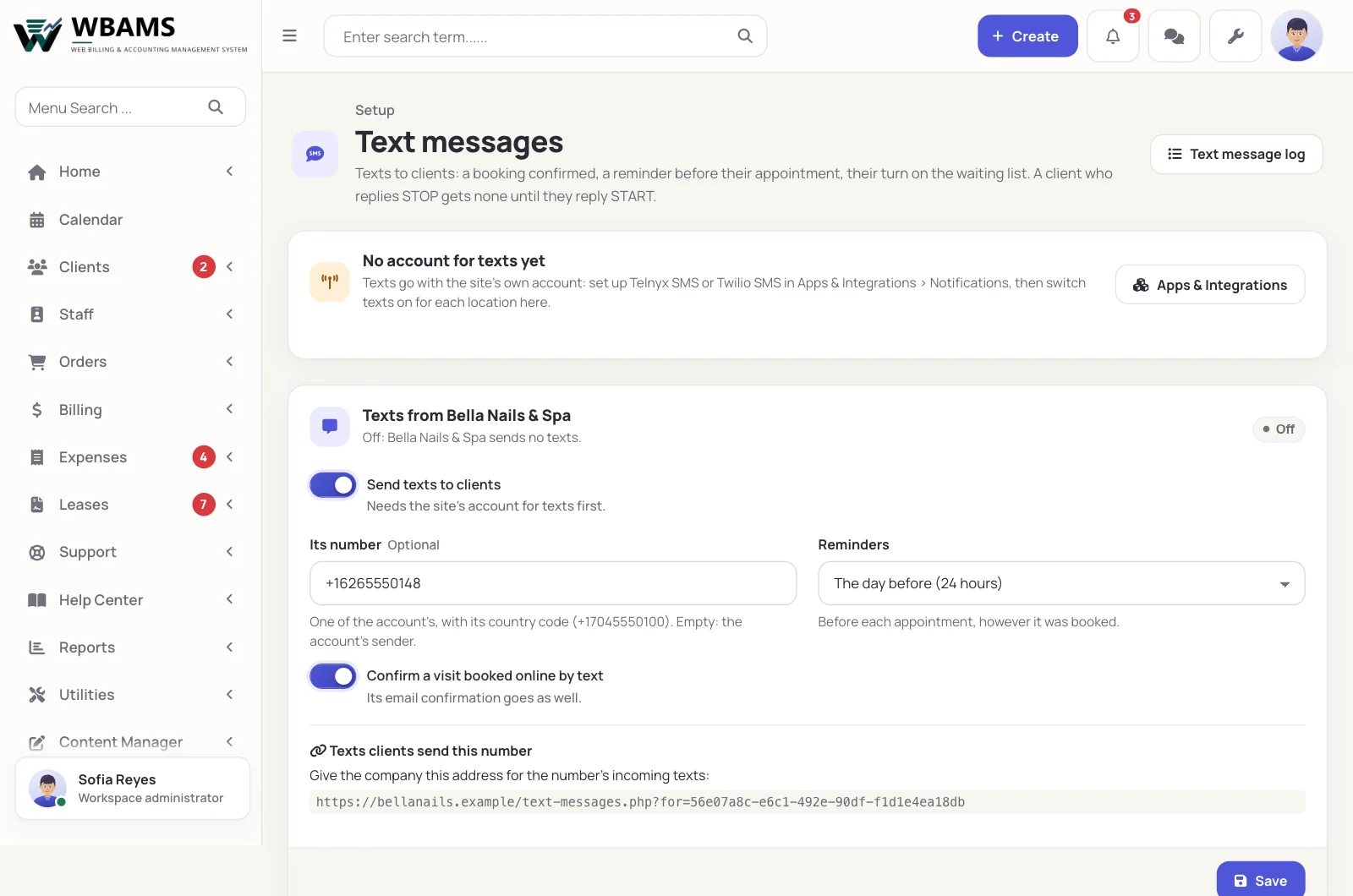
- Get an account for texts. Open System Settings → Apps & Integrations, and set up Telnyx SMS or Twilio SMS under Notifications.
- Open System Settings → Text messages.
- On the card Texts from your location, switch on Send texts to clients.
- Type Its number, one of the account's numbers with its country code (such as +17045550100), or leave it empty for the account's sender.
- Choose the Reminders: none, or 2, 4, 12, 24 or 48 hours before each appointment. Switch on Confirm a visit booked online by text if you like.
- Press Save.
- Let clients' texts in. Under Texts clients send this number, copy the address shown and give it to the text company as the number's address for incoming texts.
- Under Send a test text, type your mobile number and press Send test text.
Under The words your location sends, you can change the words of each text, with [Name], [Store], [Date], [Time], [Services], [Phone] and [Link] filled in for each client. Left empty, a text has its standard words.
Reply to clients
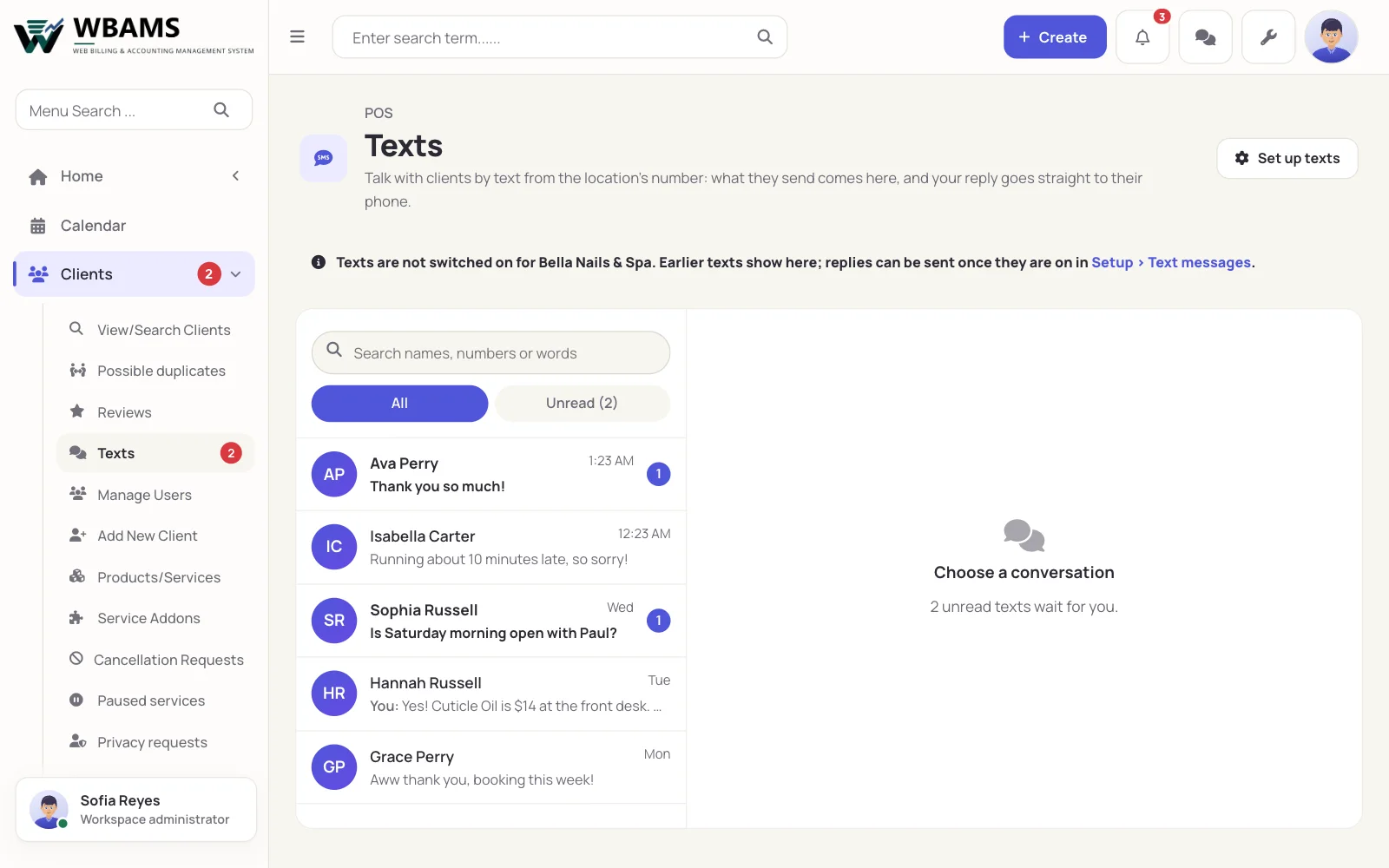
- Open Clients → Texts. Unread texts are counted beside it in the menu, and in the bell at the top.
- Choose a conversation. Its texts are in order, newest at the bottom.
- Type your reply and send it.
Each client's page also lists the texts the locations sent them and what they sent back, with Open the conversation. Every text, both ways, is in Utilities → Logs → Text messages.