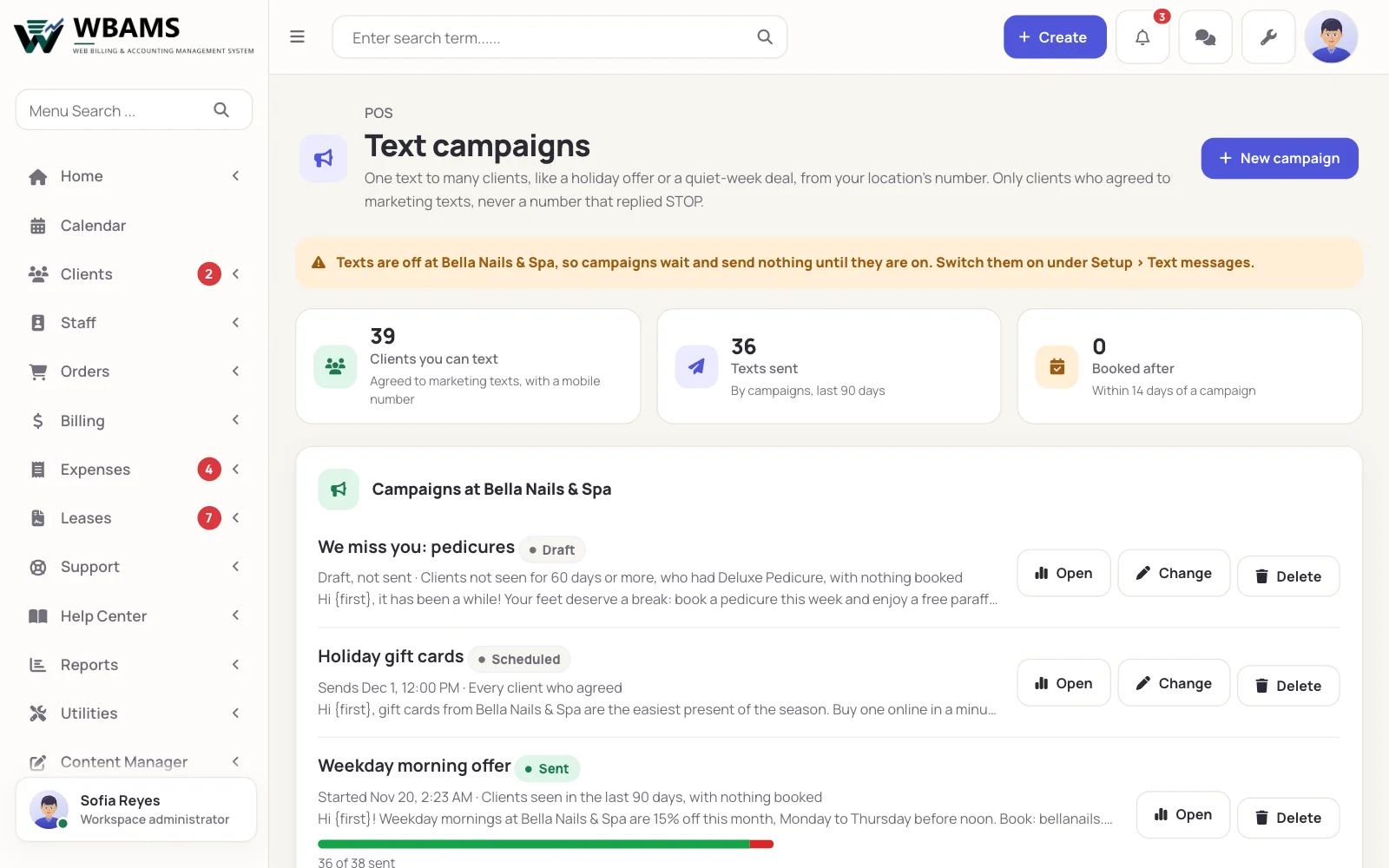

A campaign sends one text to many clients from the location's number, such as a holiday offer or a quiet-week deal. It goes only to clients who agreed to marketing texts, and never to a number that replied STOP. Texts must be set up first; see Set up texts.
Send a campaign
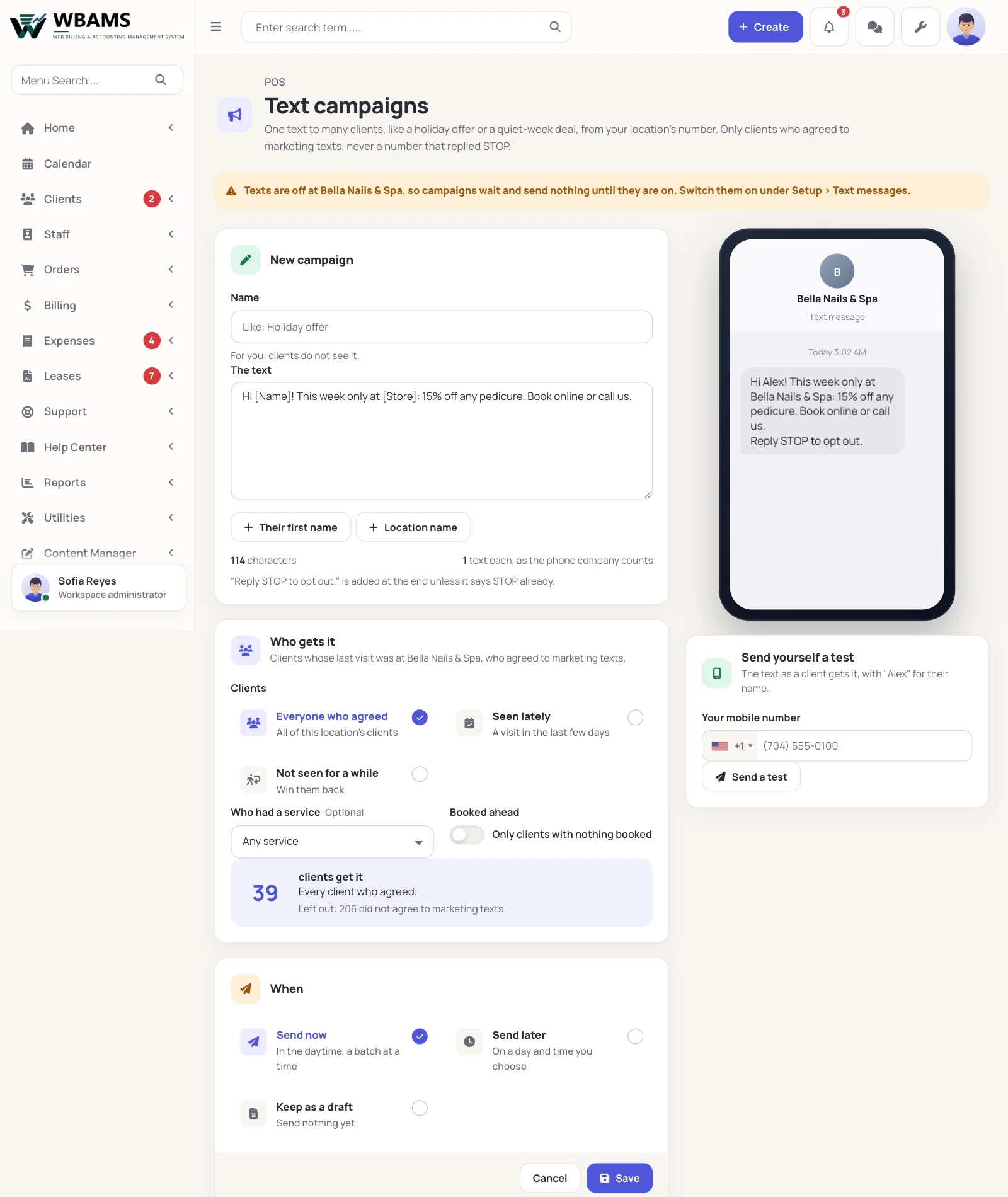
- Open System Settings → Text campaigns and press New campaign.
- Type a Name. Clients do not see it.
- Write The text. Their first name and Location name add those to the text, filled in for each client. The phone beside it shows the text as a client gets it, and the count below says how many texts each one is, as the phone company counts. “Reply STOP to opt out.” is added at the end unless the text says STOP already.
- Under Who gets it, choose Everyone who agreed, Seen lately or Not seen for a while, with the number of days.
- Narrow it if you like: Who had a service, and Only clients with nothing booked. The number of clients who get it is counted as you choose, with who is left out and why.
- Under Send yourself a test, type your mobile number and press Send a test.
- Under When, choose Send now (in the daytime, a batch at a time), Send later (on a day and time you choose) or Keep as a draft.
- Press Save.
Consent to marketing texts
A client's consent to marketing texts is kept on its own, apart from emails. They give it when they book online, sign up, or on My Details, and a STOP takes it back.
Each campaign's results
The campaigns are listed with their status: draft, scheduled or sent. A sent campaign shows how far it got, and Open shows its results client by client. The figures at the top count the clients you can text and the texts sent in the last 90 days.