

EraPOS prints receipts, slips and reports from the EraPOS window on the Windows store PC. It opens the cash drawer through the same printer. This page says which printers work, how EraPOS picks one, and how to test.
Which printers work
| Printer | How EraPOS prints on it | Good to know |
|---|---|---|
| A printer installed in Windows. This covers a USB receipt printer with its Windows driver, and a network printer you added to Windows. | EraPOS draws each receipt as a picture and prints it through the Windows driver, at the paper width the driver reports. | Cutting the paper is the driver's job. Look for the cutter option in the driver's printing preferences. |
| A network receipt printer, addressed directly. | EraPOS sends the receipt straight to the printer over the shop's network, on port 9100, in the ESC/POS format receipt printers use. It adds a paper feed and a cut at the end. | The printer must have a private address on the shop's network, such as 192.168.1.50. See Print straight to a network printer. |
EraPOS does not keep a list of approved models. Test your own printer and drawer before you rely on them.
The receipt layout has ready widths for common receipt printers: Epson 80mm (also HPRT, XPrinter and Volcora), SNBC, SNBC BTP and Epson 58mm. You choose one under MENU → Administration → Print Settings → Print Layout → Print Config → Printer Model.
Which printer EraPOS uses
The EraPOS window uses one printer for everything it prints: the printer named in the register's POS profile.
- Install the receipt printer in Windows with the maker's driver. Print a Windows test page to see that it works.
- Open Settings → Bluetooth & devices → Printers & scanners. On Windows 10 it is Settings → Devices → Printers & scanners. Note the printer's name exactly as it is written there.
- In EraPOS, open MENU → Administration → Device Profiles → POS Profiles and open the register's profile.
- On the Workstation tab, set Printer Connection Type to USB. In Printer Name, type the printer's name exactly as Windows shows it.
- Save the profile.
EraPOS prints through that Windows printer. Choose USB for every printer that is installed in Windows, also one that Windows reaches over the network.
The EraPOS window takes the printer when the register starts and when the profile is saved. It remembers the printer for the next start. You do not have to restart EraPOS.
On an activated store, the register's profile is the profile of its station. On a store that is not activated, it is the POS profile whose Station # is the register's station number. The store PC is station 1.
The printer fields on the POS profile
Each register has a POS profile under MENU → Administration → Device Profiles → POS Profiles. Its Workstation tab has printer fields:
- Receipt, Work Order and Slip set how many copies print. EraPOS prints at least one receipt.
- Cash Drawer says which drawer number this register's cash belongs to in the close-out figures.
- Printer Brand describes the printer.
- Printer Connection Type, Printer Name and Printer IP Address name the printer the EraPOS window prints on.
| Printer Connection Type | Fill in | EraPOS prints |
|---|---|---|
| USB | Printer Name: the printer's name, exactly as Windows shows it. | Through that Windows printer. |
| WIFI | Printer IP Address: the printer's address on the shop's network. | Straight to the printer, on port 9100. |
Print straight to a network printer
A network receipt printer does not have to be installed in Windows. EraPOS can send receipts straight to its address.
- Give the printer a fixed address on the shop's network, for example
192.168.1.50. Reserve that address for it in your router. - Open the register's POS profile and its Workstation tab.
- Set Printer Connection Type to WIFI. In Printer IP Address, type the printer's address.
- Save the profile.
EraPOS prints straight to the printer on port 9100. It accepts only a private address of the shop's network: one that starts with 10., 192.168., or 172.16. to 172.31.
When the profile names no printer
A profile changes nothing when it names no printer that is installed on this PC and no address on the shop's network. EraPOS keeps the printer it had. If it has none, it uses the Windows default printer. So on a new installation, receipts go to the Windows default printer until the profile names one.
To set the default printer in Windows:
- Open Settings → Bluetooth & devices → Printers & scanners.
- Switch off Let Windows manage my default printer. Otherwise Windows changes the default to the printer used last.
- Choose the receipt printer, then Set as default.
The printer EraPOS remembers
EraPOS keeps the printer it took from the profile in the file C:\EraPOS\local\data\printer.json. Nobody has to make or edit this file. If it cannot be read, EraPOS opens anyway, notes it in C:\EraPOS\local\logs\desktop.log, and takes the printer from the POS profile again.
Check the printer
In the EraPOS window on Windows, the menu has Devices Connection. It shows the register's signature pad, card terminal and printer. Check all checks every device, and each device has its own Check connection. The check prints nothing.
| The printer shows | With the message | What it means |
|---|---|---|
| Connected | Printer ready | EraPOS prints on the printer the POS profile names. |
| Connected | Printer ready (Windows' default printer: this register's POS profile names no printer installed on this PC) | Receipts go to the Windows default printer. To choose another, name it in the POS profile. |
| Offline | No printer is chosen for this register, and Windows has no default printer. | Name a printer in the POS profile, or set a default printer in Windows. |
| Disconnected | The printer "…" is no longer installed on this PC. | The printer was removed from Windows. Install it again, or correct Printer Name in the POS profile. |
| Disconnected | The printer at … did not answer. Check that it is switched on and on the store's network. | A network printer does not answer at its address. Check its power and network, and Printer IP Address in the POS profile. |
| Unreachable | The check got no answer. Choose Check connection again. |
The cash drawer
Plug the drawer's cable into the cash drawer socket on the receipt printer. EraPOS does not talk to the drawer itself. It sends the printer the standard command that opens a drawer, to the same printer it prints on.
The drawer opens:
- by itself when a cash payment is taken, and for any other payment type that gives change;
- when you press CASH DRAWER on the payment screen;
- when you choose TASKS → Cash Drawer.
Depending on the store's settings, opening the drawer by hand asks for the POS password of an employee whose role has the Cash drawer permission. See What asks for a manager's own POS password.
EraPOS opens the drawer at most once every 2 seconds, and at most 20 times in 10 minutes. If you ask sooner, it says The cash drawer was opened moments ago. Wait a little, then open it again. Every opening is written, with its time, to C:\EraPOS\local\logs\desktop.log.
Test the printer and the drawer
- In Windows, print a test page on the receipt printer. If that fails, fix the printer in Windows first.
- In EraPOS, open MENU → Devices Connection and choose Check all. The printer should show Connected. See Check the printer.
- Open MENU → Administration → Print Settings. This asks for the POS password of an employee with full access.
- Choose Print test. EraPOS prints the layout shown in the preview. Check the width, the margins and the cut.
- Go back to the home screen and choose TASKS → Cash Drawer. The drawer should open.
- On the first real cash sale, watch that the receipt prints and the drawer opens by itself.
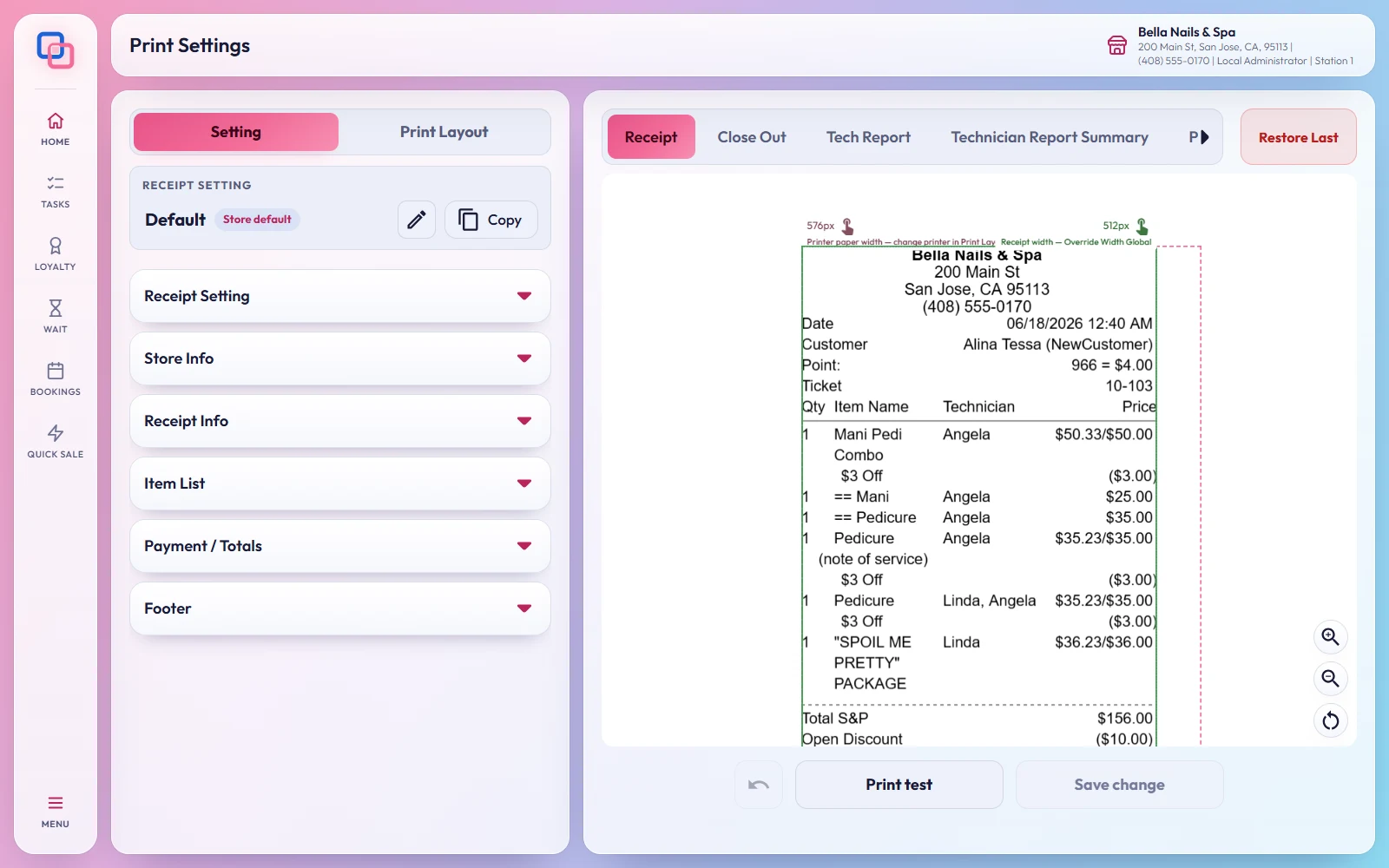
The receipt's contents and layout are set on the same screen. Changes are saved with Save change.
The limits
- Only the EraPOS window on Windows prints. A register opened in a web browser, such as a station, cannot print and cannot open a drawer. Some screens there show Print failed!
- One printer per PC. Receipts, slips, reports and the drawer command all go to the same printer.
- Installed printers only. EraPOS prints on a printer that is installed on this PC, or on a network printer at a private address of the shop's network. It refuses any other name or address.
- The drawer goes through the printer. A drawer that is not connected to the receipt printer does not open.
- Card payments are separate. A receipt printer does not take cards. See Card readers.
If something does not print
Printer errors appear in a small window titled EraPOS device operation.
| You see | What to do |
|---|---|
| Select an available printer before printing. | The POS profile names no printer installed on this PC, and Windows has no usable default printer. Name the printer in the register's POS profile, or set a default printer in Windows. |
| The printer did not respond. | A network printer did not answer within three seconds. Check that it is on, on the shop's network, and that Printer IP Address in the POS profile is right. |
| Use the printer's local network IPv4 address. | The address is not a private address of the shop's network. Correct Printer IP Address in the POS profile. |
| Receipts come out of another printer | The POS profile names no printer installed on this PC, so EraPOS uses the printer it had, or the Windows default printer. Type the printer's name in Printer Name exactly as Windows shows it, save the profile, and look under MENU → Devices Connection. |
| The printer is unavailable. or The printer could not accept the command. | The drawer command could not be sent. Check that the printer is on and shown as ready in Windows. |
| The receipt prints but is not cut | Turn on cutting in the printer driver's printing preferences in Windows. |
| The receipt is too narrow or runs off the paper | Choose the right Printer Model, or adjust Content Width, under Print Settings → Print Layout. |
| Nothing happens on a station | Stations do not print. Print from the EraPOS window on the store PC. |
More help is in Troubleshooting.