

The menu your registers sell from is kept in WBAMS, as ordinary WBAMS products. You edit names, prices, tax and durations in WBAMS's Products/Services, where you would edit any product. The add-on says which product groups are POS menus and what each store offers.
How WBAMS products become the menu
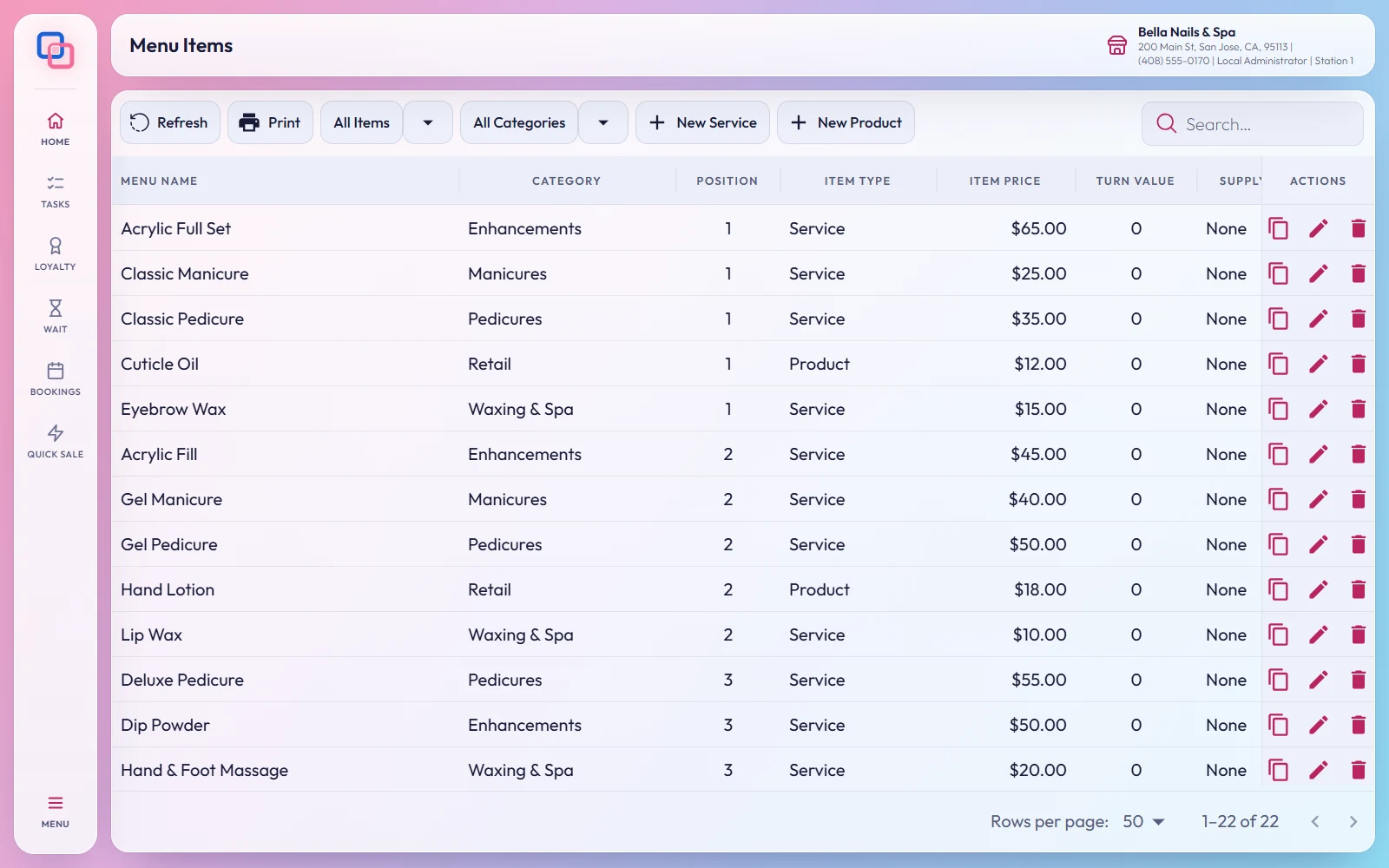
| In WBAMS | On the POS |
|---|---|
| A product group that you add as a menu | A menu. The POS lists it as the item's Category. |
| A product of the type Service | A service. |
| A product of the type Physical product | A retail product. |
| The product's one-time price in the store's currency | The item's price. |
| A service's Session length, in minutes | The service's duration. |
| Charge tax for this product | Whether the item is taxable. The tax rate itself is set on the POS. |
| The description | The description, as plain text. |
| Retired | The item stays, shown as inactive. |
There is one price list for the whole business. Every store of the business sells an item at the same price: the product's one-time price in that store's currency.
Build the menu in WBAMS
- Open Addons → EraPOS, the business's page, and the POS catalog card.
- At the bottom of the card, choose an existing product group. Or leave A new product group named… and type a name in Menu name, e.g. Nails.
- Press Add menu. WBAMS confirms the menu was added and that “its one-time services and retail products go to the business's POS”.
- Press Products/Services at the top of the card. Create each service and retail product in that group. See Create a product.
- For each product, choose the type Service or Physical product, bill it one time, and give it a price in the store's currency. For a service, set the Session length.
- Come back to the business's page. The card now lists every item with its Menu, Item, Type, Price, Duration and, under POS, whether it goes to the POS.
A product group made here is hidden from your online shop until you show it. The In the shop column says Hidden or Shown.
When an item says Not sent
Under POS, an item shows On the POS, Retired: inactive on the POS, or Not sent with the reason.
| Reason shown | What to change |
|---|---|
| “Only services and retail (physical) products go to the POS.” | The product has another type, such as software or membership. Change its type, or leave it out of the menu. |
| “Only one-time products go to the POS; this one recurs.” | Bill the product one time. |
| “It has no one-time price in …” | Enter a one-time price in the currency named. |
| “Its duration is longer than a day.” | Set a session length of 1,440 minutes or less. |
A business's catalog can have up to 100 menus and 1,000 items. If it has more, the card shows an error, and store PCs cannot refresh the menu until you take some out.
Choose what each store offers
Open the store's page and press Choose on the Catalog at this store card. The page has one card per menu. Each item has a row of switches.
Press Save on each menu's card: every card is saved on its own. A very long menu is split into cards titled “(1 of 2)”, “(2 of 2)”.
The page states the rule for online booking: “A service is bookable online when it is offered, has a duration, online booking is on and someone performs it.” See Online booking.
The card on the store's page sums it up in three numbers: Items, Offered here and Not sent to the POS.
Use the menu on the POS
- On the store PC, open MENU → Administration → WBAMS Connection and the WBAMS features tab.
- Under Products & services, press Refresh from WBAMS. A table shows what WBAMS sends: Menu, Service / product, WBAMS ID, Price, Duration and Booking.
- Check it, then press Use WBAMS automatically.
From then on the store PC reads the menu again every minute and writes only what changed. Every station gets the change.
What the POS adds to each item, and keeps:
- Its place on the ticket screen. An item that already has a place keeps it. A new item, or one moved to another menu, goes last in its menu.
- Commission, loyalty points and discounts. A new item earns commission and loyalty points and can be discounted, as an item made on the POS would.
- Technicians who are not in WBAMS. WBAMS decides which linked employees perform a service. POS employees who are not linked to WBAMS staff keep what was set on the POS.
Once the store PC has taken its store's details from WBAMS, menus and items can be changed on the POS only as the store's switches allow. A new store starts with Catalog changes and Price changes on, so its POS may change the menu and the prices for the whole business. Switch them off on the store's card What its POS may send back if the menu is to be changed in WBAMS only. With both off, the POS answers “WBAMS has not allowed POS catalog or price changes for this store.” Until the WBAMS menu is in use, it answers “Menus and prices are managed in WBAMS. Refresh and enable the WBAMS catalog first.”
Who owns the prices
WBAMS does. Change a price in Products/Services, and every store of the business that uses the WBAMS menu has it within a minute.
A POS can change prices only if you allow it for its store, and what it sends changes the price for the whole business, not for that store alone.
EraPOS has no per-store prices. Two stores can have different prices only if they are in different businesses, or sell in different currencies.
What a store's POS may send back
The store's page has a card What its POS may send back. It says: “Everything the POS saves is sent to WBAMS. Switch something off only to stop it. A new store starts with every switch on except two: Online booking, which opens the store to bookings from the website, and Business details, which lets a register change the business's own WBAMS account. The POS feed has no switch: it runs while a store server is paired.” A store added before the add-on sent its records keeps the switches it had, which were all off until someone turned one on. Press Save after changing them.
Three of its switches are about the menu and the business:
| Switch | What it allows |
|---|---|
| Catalog changes | “Its POS may add and change menus, services and retail products, and their prices, for the whole business.” |
| Price changes | “Its POS may change prices only, for the whole business.” Only the prices of items WBAMS already has. |
| Business details | “Its POS may change the business's client account details, all but its email: that is changed in WBAMS.” Off for a new store. |
The other switches on the card are described with their subjects: Customer sign-ups, Customer contact changes, Staff contact changes, Completed sales and Online booking. Customer sign-ups and Completed sales serve only a POS that does not send its records by itself.
What Catalog changes does
- The POS sends its whole menu. Menus and items it changed update the business's product groups and products.
- New menus and items become new product groups and products. They are hidden from your online shop until you show them.
- An item the POS no longer has stops being offered at that store. Nothing is deleted.
- A description from the POS is kept as plain text.
The changes are sent from the POS's WBAMS features tab with Send administrator catalog changes. If the menu changed in WBAMS meanwhile, the POS is told to refresh and review first, and nothing is overwritten.
Start from a menu that is already on the POS
If the store already has its menu on the POS, send it to WBAMS once instead of typing it again.
- In WBAMS, switch on Catalog changes for that one store and press Save.
- On the POS, under Products & services, press Refresh from WBAMS, then Send administrator catalog changes.
- In WBAMS, check the new menus and items on the business's POS catalog card.
- Switch Catalog changes off again and press Save.
- On the POS, press Refresh from WBAMS once more, then Use WBAMS automatically.
The POS sends only items with a single price that are a service or a product. If the menu has packages, variants or custom-price items, it stops with “Review package, variant and custom-price products before publishing this catalog.” and sends nothing.
Stop selling something
- Everywhere: mark the product Retired in WBAMS. It stays in WBAMS, and the POS shows it as inactive.
- At one store: switch off Offered here on that store's catalog page.
- A whole menu: press Take out beside it on the POS catalog card. The product group and its products stay in WBAMS. Each POS hides the menu's items, and the menu with them, at its next refresh.
Retire rather than delete. A product that is deleted in WBAMS, or whose menu was taken out, is hidden on the POS at its next refresh. It is not deleted there, so past tickets and appointments keep it, and it shows again if WBAMS sends it again.
What EraPOS does not do
- It does not send recurring products, or products of other types, to the POS.
- It does not keep a separate price per store.
- It does not delete anything on the POS.
- It does not set tax rates from WBAMS. WBAMS says whether an item is taxable; the POS applies its own tax.