

EraPOS Hub is the phone app for technicians and owners. A technician sees their own day: earnings, tickets, appointments, turns and pay. An owner also sees the whole store. The app runs on Android phones and on iPhone and iPad, in English or Spanish.
How to use each screen is in the Help centre. This page covers setting it up and controlling who has it.
How it connects
- The phone talks to your business's WBAMS site over the internet. It never connects to the store PC, so it works away from the shop.
- The store PC sends WBAMS what the app shows, as it changes: tickets, appointments, clock-ins, the turn queue.
- What a person asks for in the app, such as clocking in, goes to WBAMS. The store PC picks it up a few seconds later and answers, under the POS's own rules.
- If the store PC is off, the app shows what was sent last. A request waits, then ends with The store's POS didn't answer.
Your EraPOS provider gives you the app.
Before you start
- The store PC is connected to WBAMS. See Connect the store server.
- The employee on the POS is linked to their staff member in WBAMS. See Staff and store roles.
- The person has their own WBAMS login. The app signs in with it. Nobody shares a login.
Turn the app on for an employee
- On the POS, open Back Office → Employees and edit the employee.
- Open the Mobile Access tab. Read the WBAMS login line (the table below).
- Turn on EraPOS Hub (Tech). For an owner, also turn on EraPOS Hub (Owner).
- Save.
| The WBAMS login line says | What to do |
|---|---|
| The staff member's name, and Signs in to EraPOS Hub with their WBAMS login. | Nothing. They can sign in. |
| Not connected to WBAMS | Connect the store PC to WBAMS first. The line names the page: Administration > WBAMS Connection. |
| Not linked | Link the employee to their WBAMS staff member: MENU → Administration → WBAMS Connection, Directory tab. |
| No WBAMS login yet | Use Register EraPOS Hub (next), or create the login in WBAMS. |
Give an employee a WBAMS login
- On the POS, open the side menu and choose Manager → Register EraPOS Hub.
- The employee types their own POS password.
- A window titled EraPOS Hub says what happened. Choose DONE.
If no email arrives, the WBAMS administrator looks at the store's Staff card in WBAMS. See Staff and store roles.
Connect a phone and sign in
- Open EraPOS Hub. On Sign in to EraPOS Hub, type your Work email and choose Email me a code.
- A 6-digit code arrives by email. It works for 10 minutes. Type it and choose Continue.
- If you have the app at more than one business, choose one under Choose your business.
- Choose Sign in with WBAMS. A browser window opens on your business's WBAMS sign-in page.
- Sign in there with your WBAMS email and password, and your two-step code if you use one. The password is typed on the WBAMS page, never in the app.
- WBAMS asks whether to sign in to EraPOS Hub on this phone, and lists your stores. Choose Sign in.
- The app opens on Home.
- The first time, EraPOS also emails you to say your business added you. Confirm that email first. Until you do, the app cannot find your business.
- Without the email step. Choose Enter your business's address instead and type the address of your WBAMS site, such as
https://example.org/wbams. Then choose Connect. The address is shown on the store's EraPOS Hub card in WBAMS, with each staff member's work email. Those two are what a person types in the app. - How many phones. A technician stays signed in on one device. An owner, on up to two. The first device keeps its place. A new one is refused until a place is free.
- Staying signed in. A phone stays signed in while it is used. One that has not opened the app for 90 days signs in again.
- Lock the app. On the ME tab, turn on Lock EraPOS Hub. The app then asks for Face ID, a fingerprint or the phone's passcode when it opens.
What staff see
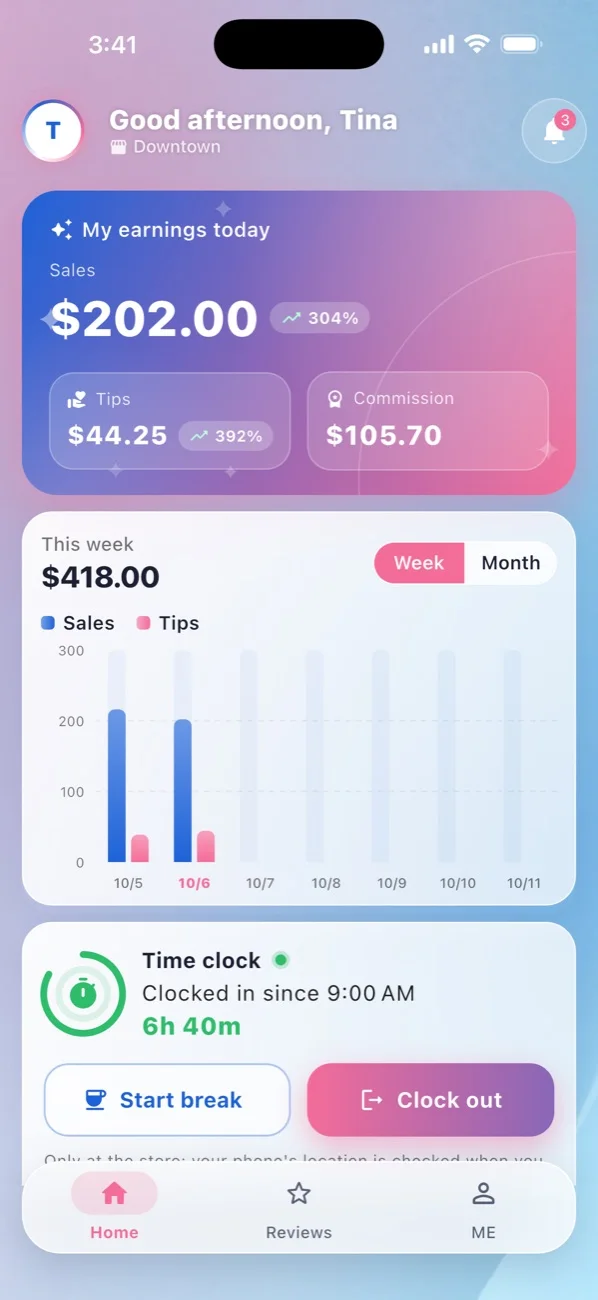
The app has three tabs: Home, Reviews and ME. The bell at the top opens notifications.
Staff see only what is theirs. Commissions and tips the owner hides on the POS are hidden in the app too. A customer's phone and email show masked unless the person's POS role may see them.
What Owner mode adds
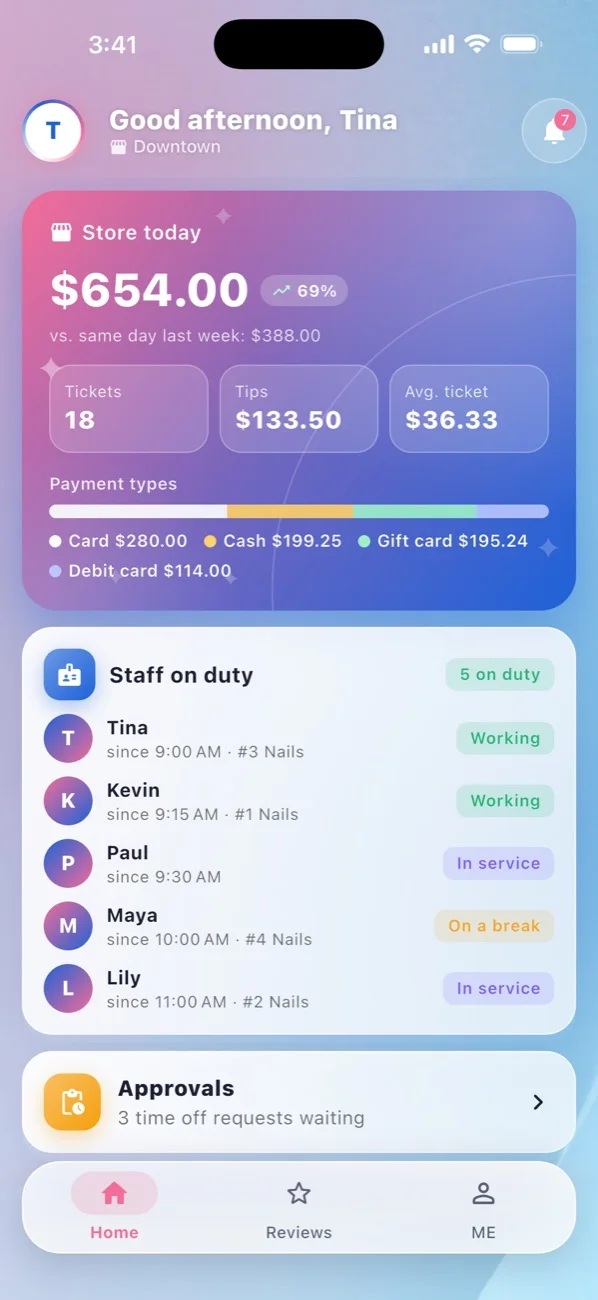
Sales, every employee's pay and every customer's contact details. Turn on EraPOS Hub (Owner) for owners only.
Clocking in from a phone
Clocking in, clocking out and breaks work from a phone only at the store.
- An owner stands in the store, opens the ME tab, finds Clocking in from phones and chooses Set to where I am now.
- From then on, staff can clock in near that place. The phone's location is read only at the moment of the tap.
- Someone who is too far away, or who does not allow location, clocks in at a register as before.
Shift reminders and Running late
From EraPOS Hub 1.3.1 with WBAMS POS 1.13.10, Home shows today's shift under the time clock. The app reminds a person who has not clocked in when their shift starts, or who is still clocked in when it ends, and a person who will be late can say so with Running late?. See Shift reminders and Running late.
Notifications
Notifications are listed under the bell. The app loads them when it is opened or brought back to the front, so open the app to see what is new.
| Who | What they are told |
|---|---|
| Staff | A new, moved or cancelled appointment still to come; an appointment reminder sent from the POS; You're next and Your turn; time off approved or declined; a new rating; a new announcement; and the answer to what they asked, such as Clocked in. |
| Owner mode | Refund, Ticket voided, Large sale, New online booking, Day closed, Time off requested, and a low rating of 1 or 2 stars. |
An owner switches each alert on or off under Manage store → Alerts. Day closed arrives when the day is closed out on the POS, by a person or by the POS itself when the day ends, with the day's figures against the same day a week before.
Remove a phone's access
| Who | Where | What happens |
|---|---|---|
| The person | In the app: ME → Sign out | That phone is signed out. Its place is free. |
| The owner, on the POS | Edit the employee, Mobile Access → Reset Device | The person is signed out on every device. They can sign in on another one. |
| The owner, in WBAMS | The store's page, EraPOS Hub card, Sign out beside the device | That one device is signed out. |
| The owner, on the POS | Turn off EraPOS Hub (Tech) and (Owner), and save | Once the app is off for them at every store, they are signed out on every device at once. |
Device ID on the Mobile Access tab names the devices the person is signed in on. The EraPOS Hub card in WBAMS lists the same for the whole store, with when each was last used.
Use Reset Device, and turn the two switches off for a leaver. Have the person change their WBAMS password, or remove their login in WBAMS if they have left. See the owner's checklist.