

The short version
EraPOS lives in your shop, on one Windows PC. That PC is the main register. It also runs the store's server and keeps the store's data. Everything else connects to it or works alongside it.
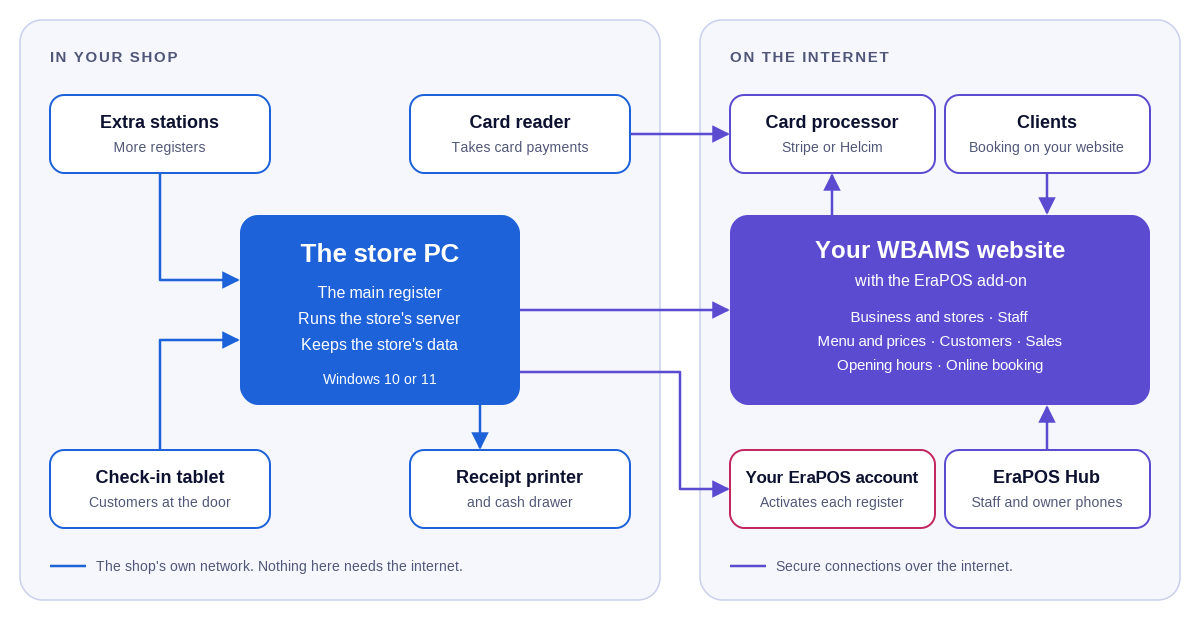
| Piece | Where it is | What it is for |
|---|---|---|
| The store PC | At the front desk | The main register. Runs the store's server and keeps the store's data. |
| Extra stations | Other computers on the shop's network | More registers that share the same tickets, customers and appointments. |
| The customer check-in tablet | At the door | Customers check themselves in and appear on the waiting list. |
| EraPOS Hub | On staff and owner phones | Staff see their day and clock in. Owners see the store. |
| Your WBAMS website with the EraPOS add-on | On the internet, on your web hosting | Holds the business, its stores, staff, the menu and prices, customers and sales. Takes online bookings. |
| Your EraPOS account | With EraPOS | Holds your licence and your registers. Activates each register. |
The store PC
The store PC is a Windows 10 or Windows 11 computer at the front desk. EraPOS is installed on it, in C:\EraPOS. It does three jobs:
- It is the main register. The EraPOS window on this PC is the shop's first register, station 1. Receipts print and the cash drawer opens from this window.
- It runs the store's server. The server starts when you sign in to Windows and keeps running when the EraPOS window is closed. The other registers and the check-in tablet work through it.
- It keeps the store's data. Customers, tickets, appointments, employees and settings are in
C:\EraPOS\local\dataon this PC. Your backups are copies of that data.
The other registers and the check-in tablet stop when the store PC is off, asleep, or signed out of Windows. Keep it on while the shop is open, and always sign in to Windows as the same user.
Guides: Install EraPOS, Activate EraPOS, Backup and restore, Update and uninstall.
Extra stations
A station is another register: a computer on the shop's own network that opens EraPOS in a web browser. EraPOS is not installed on a station. The station connects to the store PC over an encrypted connection (HTTPS, port 17833) that stays inside the shop's network.
- Every station shows the same tickets, customers and appointments, because they are all kept on the store PC.
- Each station has its own station number. Ticket numbers are given out by the store PC, so no two tickets of a day share a number, whichever register opened them. With more than one station, a ticket's number shows the station in front of it, for example 1-22.
- A ticket that is open on one register is locked on the others while it is open there.
- A station that loses its connection keeps what was entered on it, and sends it when the connection is back. It can go on selling meanwhile: Quick Sale asks Who is selling? and offers the employees who entered their POS password on that register that day, and the ticket says Sold while cut off. What a register could not send yet is listed on it in plain words. Do not clear a station's browser data before it has caught up.
- A station in a web browser cannot print receipts or open a cash drawer. The EraPOS window on the store PC does that.
Before a station can connect, the store PC is opened to the shop's network once, and the station is told to trust the store PC's certificate. See Add stations.
The customer check-in tablet
The check-in tablet is an Android tablet at the door, running the EraPOS Check-in app. A customer enters their phone number, chooses their services, and appears on the waiting list on the registers.
- The tablet connects to the store PC over the shop's network, as a station does.
- You set tablets up in WBAMS, on the store's page: each tablet's name and activation code, what the screens ask, waivers, and the Wheel of Fortune. The store PC reads these settings from WBAMS and passes them to the tablets.
- A tablet is activated once, with its activation code from WBAMS. For that, the store PC must be connected to WBAMS.
- A tablet has its own access, separate from the registers'.
See Customer check-in.
EraPOS Hub
EraPOS Hub is the app for staff and owners, for Android phones and iPhones. Staff see their appointments, tickets and clock-ins, and clock in and out at the shop. In Owner mode, an owner sees the whole store.
- The app talks to your WBAMS website over the internet. It never connects to the store PC.
- The store PC sends WBAMS everything saved on the POS, as it changes, so the app shows tickets, appointments and clock-ins as they are. It also carries out what the app asks for, such as a clock-in.
- Each person signs in with their own WBAMS login. The app finds your business from the person's work email.
- You choose on the register who has EraPOS Hub, and who has Owner mode.
See EraPOS Hub.
Your WBAMS website with the EraPOS add-on
WBAMS is the system your salon's website and back office run on. It is made by the same company as EraPOS. The EraPOS add-on makes it the back office for your EraPOS stores. One WBAMS holds your business and all of its stores.
Once the store PC is connected, everything saved on the POS reaches WBAMS by itself: customers, employees, the menu, appointments, the waiting list, tickets with their lines and payments, the time clock, the cash drawer and close-outs. Nothing has to be switched on. The POS keeps its own copy and works without the internet; what was saved meanwhile is sent when WBAMS answers again. WBAMS holds:
- The business and its stores
- Each store's name, address, contacts, currency and time zone. The register shows them in its header and on receipts.
- Staff and roles
- Who works at which store as owner, manager or staff, and the POS roles that decide what each person may do on a register. The POS's employees reach WBAMS by themselves, each linked to a staff record. An employee's POS role does not change because of it.
- The menu and prices
- Your services and retail items are WBAMS products. There is one price list for the business, and each store chooses what it offers.
- Customers
- Every customer of the store's POS. A customer with an email address is given a WBAMS client account, and no email is sent to her. A change made in WBAMS to a customer or to her points reaches every register.
- Sales
- Every ticket with its lines and payments, as the POS saved it. WBAMS's sales report for the store is worked out of them, counted the way the POS's own Sales report counts.
- The store's website
- Opening hours, online booking, and website sections for services and prices, locations and hours, the team, and booking.
Never sent: card details beyond the last four digits, card security codes, employees' POS passwords, social security and bank numbers, and the passwords or keys of other services. WBAMS Connection on the register shows up to which time everything saved is in WBAMS. See This store's records in WBAMS.
WBAMS is also where each store's card readers and check-in tablets are registered.
The store PC connects out to your WBAMS website over HTTPS. Nothing on the internet connects in to the store PC. That is why the store PC publishes its staff's free times to WBAMS for online booking, and collects new bookings from WBAMS itself.
Guides: The EraPOS add-on, Businesses and stores, Connect the store server. WBAMS has its own documentation at docs.wbams.com.
Your EraPOS account
Your EraPOS account is your account with EraPOS, the company. Your licence is kept with it, together with your store and its registers. It is what lets each register start.
- Each register has its own activation code. Activating a register uses one of the registers on your licence.
- Once your store PC is linked to your account, the sign-in page asks for the Activation Code instead of an email address and password. A register that was signed in with the owner account is signed out by itself and asks for its code.
- The store PC checks in with EraPOS over the internet. A register that has started before can still start when the internet is down, for a limited time.
- When you ask EraPOS support for help, they can open the protected settings on your register with a support code. Every such session is listed on the register's Administration page.
See Activate EraPOS.
What talks to what
| From | To | How | Needs the internet |
|---|---|---|---|
| The EraPOS window | The server on the same PC | http://127.0.0.1:17831, an address that works on the store PC only | No |
| Extra stations | The store PC | HTTPS on the shop's network, port 17833 | No |
| Check-in tablet | The store PC | HTTPS on the shop's network, port 17833 | No |
| The store PC | Your WBAMS website | HTTPS, started by the store PC | Yes |
| The store PC | EraPOS | HTTPS, started by the store PC | Yes |
| EraPOS Hub | Your WBAMS website | HTTPS | Yes |
| Clients booking online | Your WBAMS website | The Book online page of your website | Yes |
| Card reader | Its card processor, Stripe or Helcim | The reader's own internet connection | Yes |
A card payment travels this way: the register asks the store PC, the store PC asks your WBAMS website, and WBAMS hands the payment to the reader through the card processor. The reader never talks to the register directly. See Card readers.
Where each thing is changed
Once the store PC is connected to WBAMS, some things are changed on the register and others in WBAMS. Knowing which is which saves a lot of looking.
| What | Where you change it |
|---|---|
| Tickets, payments, appointments, the waiting list, clock-ins | On the registers. They are kept on the store PC. |
| The store's name, address, contacts, currency and time zone | In WBAMS. The register shows them and cannot change them. |
| Employees: the people who clock in and take tickets | On the register. The store PC links each one to their staff record in WBAMS by itself. |
| Who is on a store's staff, and the POS roles | In WBAMS. The register's roles page shows the roles read-only. |
| The menu and prices | In WBAMS, under Products/Services. A store's register may send changes back only if you allow it for that store. |
| Customers | On the registers. Every customer reaches WBAMS by itself. Whether the register may change a WBAMS client's name and phone is a switch on the store's page in WBAMS. |
| Opening hours | In WBAMS, in the store's Opening hours, when the register takes its hours from there. Otherwise on the register, under Store Settings → Business hours. Until they are set, the register treats every hour as open. |
| Printing, the receipt layout, themes and the other Back Office screens | On the register. They ask for the POS password of an employee whose role allows it. The owner's always does. |
| Store settings and the WBAMS connection on the register | On the register, with the protected settings unlocked by an approval from WBAMS. |
| Check-in tablets and card readers | In WBAMS, on the store's page. |
| Who has EraPOS Hub | On the register. |
| Your licence and the number of registers | With EraPOS. Ask EraPOS support. |
Guides: Protected settings, Roles and permissions, Staff and store roles, Menu and prices, Customers, Sales and reports.
What keeps working without the internet
The store PC is in your shop, so the registers do not depend on the internet.
- Keeps working
- The store PC and its stations: tickets, cash payments, appointments, the waiting list and clock-ins. Check-in tablets that are already activated.
- Waits for the internet
- Card payments on a card reader. New online bookings. EraPOS Hub. What was saved on the POS and has not reached WBAMS yet, which is sent when the connection is back. Unlocking protected settings, which is approved in WBAMS. Activating a register for the first time.
What does not survive is the store PC being off. See Network and files for what to protect, and Troubleshooting when a register cannot connect.
Check what each piece needs in System requirements, then follow the Setup checklist.